
Course Overrides (Registration Restrictions)
If you are an instructor of a course, you can enter your approval for a course registration restriction override directly onto a student's record within ESTHER. To do so, you must have either the Rice Student ID Number, Net ID, Preferred First Name, or Last Name of the student for whom you will be applying the course registration restriction override.
- Course Registration Override Requests - Submitted by Students, Reviewed by Instructors
- Course Registration Override Requests - Submitted by Instructors
By using the Course Registration Overrides feature in ESTHER, you will not need to sign or complete a paper Special Registration Form. With your approval, and providing a registration restriction override electronically, the student will be able to register for your course in ESTHER, as they would normally.
Please note: you are not required to grant a student's request for a registration restriction override simply because a student is asking for one.
Course Registration Override Requests - Submitted by Students, Reviewed by Instructors
- Receive Email Notification: Once a student submits a Course Registration Override request in ESTHER, you will receive an email from registrar@rice.edu with an approval link. The subject line includes the following: Course Registration Override – Student Name – (Student ID) – Course Subject/Number (CRN) – COURSE TITLE.
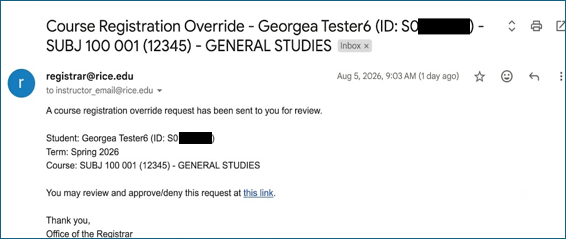
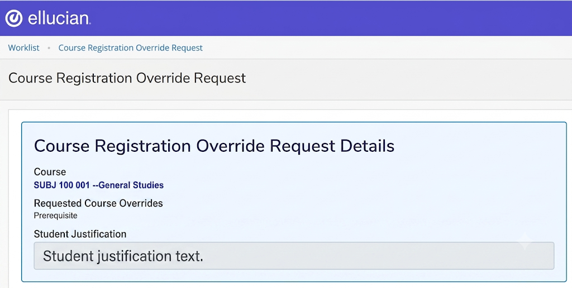
- Access Dashboard: Click the link in the email to open the Course Registration Override Request Details dashboard.
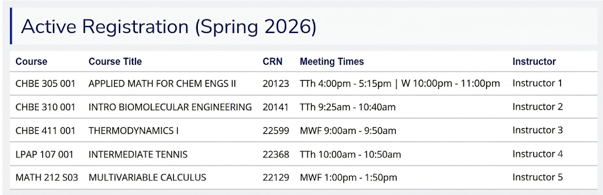
- Review Details: Use the information on the dashboard—including Course Override Details, Student Profile, Academic Profile, Registration, and Academic History (if provided) to make your determination.



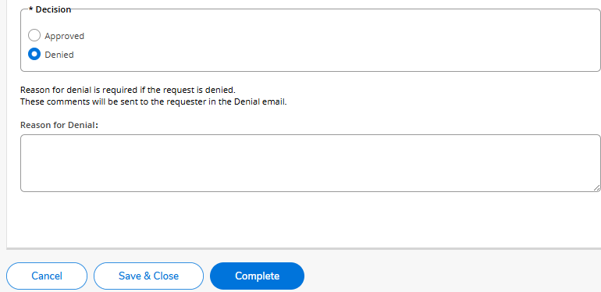
- Submit Decision: Mark your Decision as Approved or Denied and click Complete.
- If approving, the override updates automatically in Banner, and the student is notified to complete registration in ESTHER.
- If denying, a denial comment is required and will be included in the email to the student.
Course Registration Override Requests - Submitted by Instructors
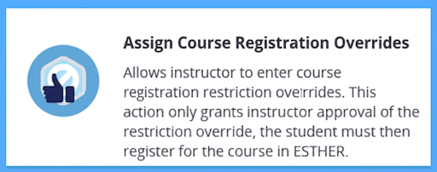
- Log in to ESTHER: Log in to ESTHER using your credentials, navigate to the Faculty link, and click on the Assign Course Registration Overrides tile.
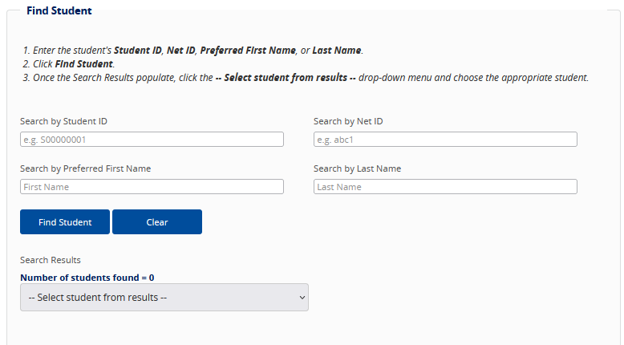
- Find Student: Use the search fields (Student ID, Net ID, First Name, or Last Name) to locate the student, click Find Student, and select them from the drop-down menu.
- Enter Search Criteria: Choose the Term, Course, and the specific Course Registration Override(s)* needed.
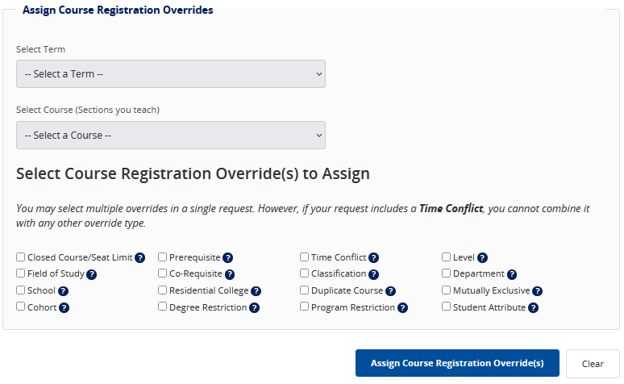
- Assign Override: Click on the Assign Course Registration Override(s) button. The student will automatically receive an email notifying them to complete registration in ESTHER.
* You may select multiple overrides at once, but Time Conflict cannot be combined with other override types and must be submitted as its own request.
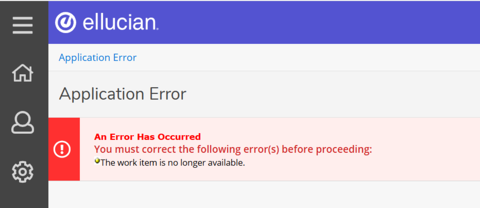
Please note: For courses with multiple instructors, requests require only one response. If a request has already been processed by another instructor, the system will display the notification below. You may safely close this window.
List of Overrides (of Registration Restriction)
You can enter the following course registration restriction overrides to allow students the ability to add your course to their schedule:
- Classification Restriction – use when a course is restricted to a specific classification of student such as freshman, sophomore, junior or senior.
- Cohort Restriction – used when a course is restricted to a specific group of students, usually by entering class year.
- Co-Requisite – use when a student is being allowed into a course without being registered for the required co-requisite course.
- Degree Restriction – use when a course is restricted to students in a specific degree program.
- Department Restriction – use when a student is being allowed into a course restricted to majors within a specific department.
- Duplicate Course – use when a student is being allowed to register for the same course more than once in a semester.
- Field of Study – use when a course is restricted to students in specific majors, minors, certificates, or major concentrations – the error message received by the student is Field of Study restriction.
- Level Restriction – use when an undergraduate student is being allowed to register for a course restricted to graduate students, and vice versa.
- Mutually Exclusive – use when a student is being allowed to register for a course which the department has blocked because the student has a similar course in academic history and the department does not want a student to receive credit for both. NOTE: When granting this Override, the student will ultimately receive credit for both courses.
- Prerequisite – use when a student does not have the required prerequisite course in academic history.
- Program Restriction – use when a student is being allowed into a course restricted by a specific program. (Used by the Jones School Only)
- Residential College – use when a student is being allowed to register for a course that is restricted to a residential college to which they are not a member.
- School Restriction – use when a student is being allowed into a course restricted to majors within a specific school.
- Seat Limit – use when a course has reached maximum enrollment and/or instructor/department permission is required. WARNING: Do not enter an override for a Seat Limit (Closed Course) if the section currently has an active ESTHER waitlist.
- Student Attribute - use when a course is restricted to a specific student attribute.
- Time Conflict - use when a student would like to enroll in two (or more) classes that have conflicting times. Permission from the instructors of both courses (or all) is required.