
Faculty Grade Entry Guide
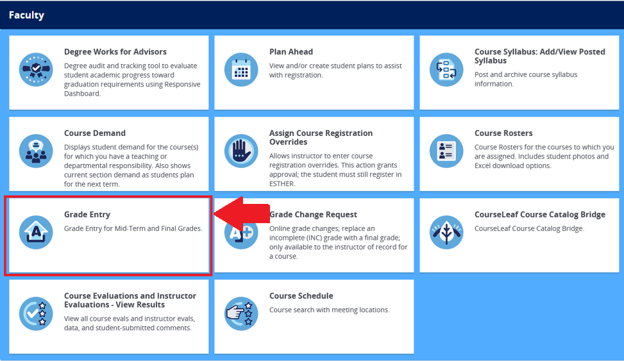
- Log in to ESTHER: Navigate to the Faculty tab and click the Grade Entry tile.
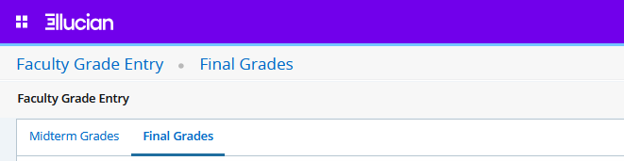
- Select Faculty Grade Entry Type: Choose the Midterm Grades or Final Grades tab at the top (defaults to Final Grades).
- Select Course: Locate your course under My Courses (use the Search bar or click column headers to sort). Click the row to select it.
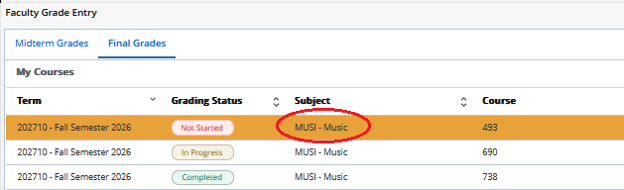
Tip: Monitor your progress in the Grading Status column (Not Started, In Progress, or Completed)
- Assign Grades: Use the drop-down menu next to each student's name to select a grade. Use the page controls at the bottom to adjust rows per page (the default is 25 rows per page), or switch pages. (Please note that Midterm Grades are required only for first-year undergraduate and first-year transfer students. The Office of the Registrar automatically assigns an NG (No Grade) grade to students who do not require a midterm grade.)
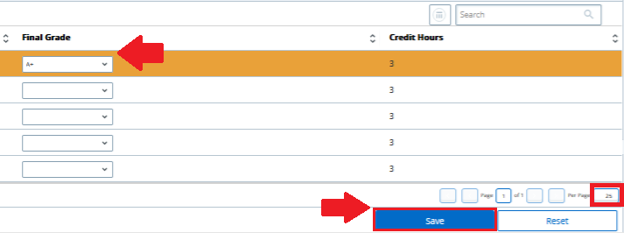
- Save Your Work: Click Save at the bottom right.
Tip: Always save before leaving the page, even if grading is incomplete. The Reset button will erase unsaved entries.
Special Considerations
- Assigning an Incomplete (INC) Grade: Selecting INC redirects you to the Incomplete Grades tab, showing the default Extension Date. If unresolved by this date, the grade reverts to an F. Click the Roster tab to return to the main list and submit final grades. (Refer to the Registrar's Temproary Grade Policy and the General Announcements for full details.)

- Cross-listed Courses: Cross-listed courses are combined into a single course roster and require grade entry under a single section. When grading is complete in one section, the cross-listed section will automatically update to complete.