
Grade Entry
If you have questions, requests, or problems with the online grade entry, please contact the Office of the Registrar by email at registrar@rice.edu or contact the Online Grade Entry Hotline at 713-348-8044 or the main office line at 713-348-4999.
- Faculty Grade Entry Guide
- Exporting a Grade Roster
- Importing Grades back into ESTHER
- Special Considerations
- Midterm/Mid-Semester Grades
- Final Grades
- Important Grading Information
Faculty Grade Entry Guide
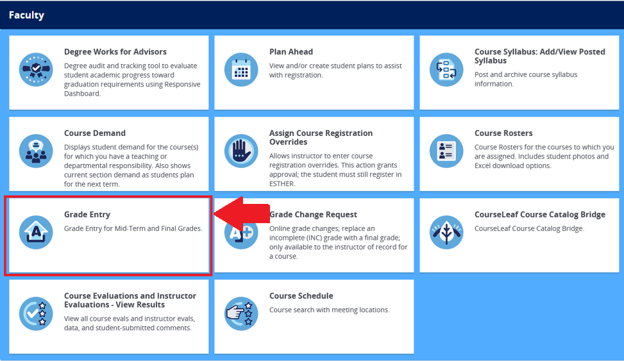
- Log in to ESTHER: Navigate to the Faculty tab and click the Grade Entry tile.
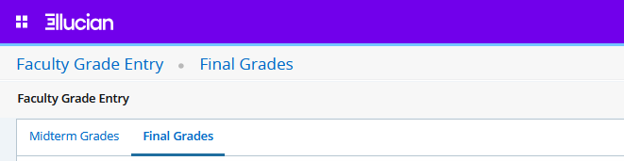
- Select Faculty Grade Entry Type: Choose the Midterm Grades or Final Grades tab at the top (defaults to Final Grades).
- Select Course: Locate your course under My Courses (use the Search bar or click column headers to sort). Click the row to select it.
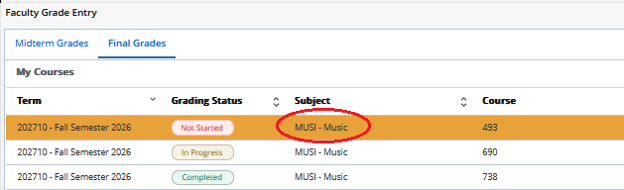
Tip: Monitor your progress in the Grading Status column (Not Started, In Progress, or Completed)
- Assign Grades: Use the drop-down menu next to each student's name to select a grade. Use the page controls at the bottom to adjust rows per page (the default is 25 rows per page), or switch pages. (Please note that Midterm Grades are required only for first-year undergraduate and first-year transfer students. The Office of the Registrar automatically assigns an NG (No Grade) grade to students who do not require a midterm grade.)
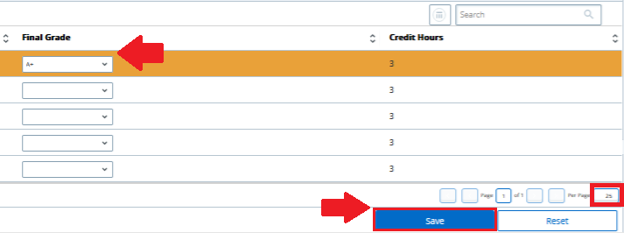
- Save Your Work: Click Save at the bottom right.
Tip: Always save before leaving the page, even if grading is incomplete. The Reset button will erase unsaved entries.
Exporting a Grade Roster
-
Select Course to Export: Click on the row for the course that you want to export grades for.

-
Access Tools: Click the Tools icon (gear icon) in the top-right corner of the page.

-
Export Template: Select Export Template from the drop-down menu.
-
Select File Format: Choose your preferred file format (.xlsx or .xls) and click Export.
-
Enter Grades Offline: Open the downloaded Excel file and enter grades in the Final Grade (or Midterm Grade) column.
Tip: Do not alter or delete the column headers or structure of the exported file to ensure smooth re-importing.
Importing Grades back into ESTHER
- Select Course to Import: Click on the row for the course that you want to import grades for.
- Initiate Import: Click the Tools icon (gear icon) in the top-right corner and select Import.

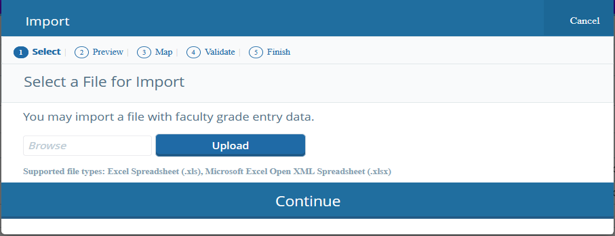
- Upload File: Click Browse or select the file area, select your saved Excel file, and click Upload > Continue.
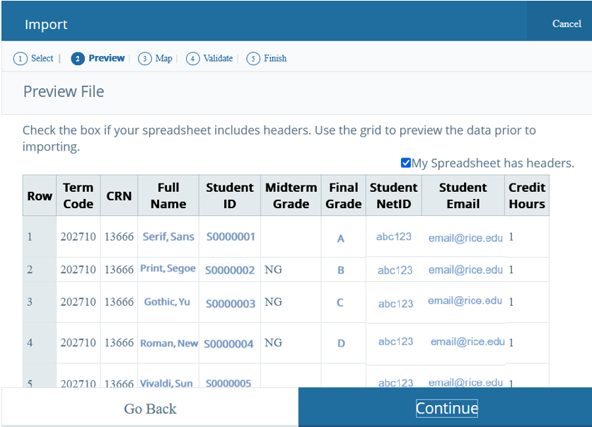
- Preview: Preview the file to confirm it loaded correctly, verify the My Spreadsheet has headers box is checked, and click Continue.
- Map Columns: Ensure Banner columns match your spreadsheet headers (Term, CRN, Student ID, and Grade). (If you used the exported template, mapping updates automatically.) Click Continue.
- Validate Import: Review the validation summary.
- If there are errors, click Download the validation report to identify invalid grades or missing fields, correct them in your file, and re-upload.
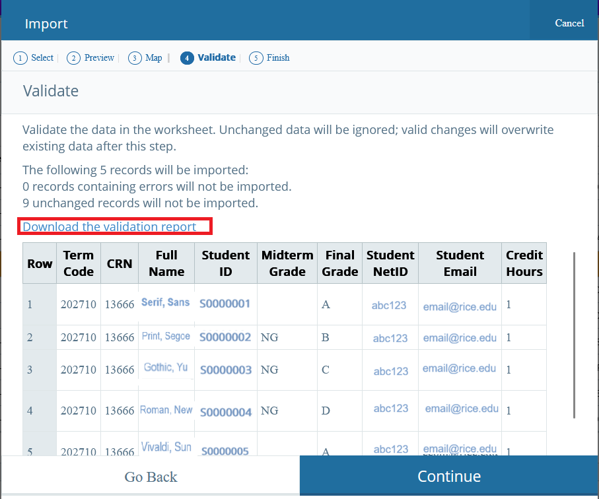
- If there are errors, click Download the validation report to identify invalid grades or missing fields, correct them in your file, and re-upload.
- Finish: Click Finish to finalize the grade import onto your web roster.
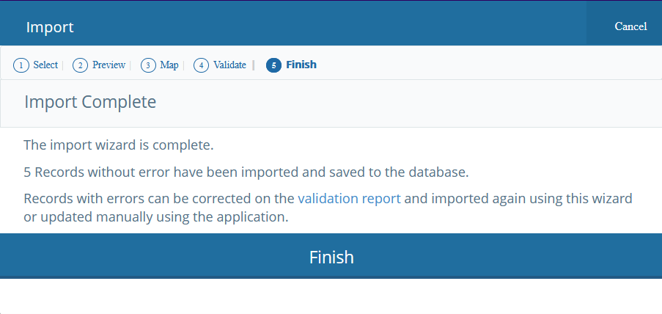
- Verify Import: Review your roster to confirm all grades imported correctly.
Special Considerations
- Assigning an Incomplete (INC) Grade: Selecting INC redirects you to the Incomplete Grades tab, showing the default Extension Date. If unresolved by this date, the grade reverts to an F. Click the Roster tab to return to the main list and submit final grades. (Refer to the Registrar's Temproary Grade Policy and the General Announcements for full details.)

- Cross-listed Courses: Cross-listed courses are combined into a single course roster and require grade entry under a single section. When grading is complete in one section, the cross-listed section will automatically update to complete.
Midterm/Mid-Semester Grades
Midterm grades help first-year undergraduate and first-year undergraduate transfer students gauge academic progress halfway through the semester and serve as an indicator of their academic performance in a class.
The grades received are not recorded permanently and will not appear on a transcript. They are purely informational. A student should use their mid-term grade as important and helpful feedback.
Students are strongly encouraged to get in touch with instructor(s) if:
- There are concerns about midterm grades
- There is no midterm grade for a class
If students feel that they could be doing better academically, they are advised to discuss this with course instructors or seek help from the Office of Academic Advising (aadv@rice.edu or 713-348-4060).
Where to View (Students)
- Login to ESTHER.
- From the Students tab, click Students - General.
- Click on Student Profile.
- On the left, click View Grades.
- Select the semester you wish to view grades for, then click Submit.
- Your grades (including Midterm Grades) for the selected semester will be displayed.
Where to View (Advisors/Staff)
Midterm grades are viewable in EAB Navigate and in Edgar (Student > Registrar Applications > Grade Report/Download).
Final Grades
All final grades are submitted via ESTHER. Online grade entry is available to Course Instructors.
If you are attempting to change an INC or OT grade, you will need to submit a Grade Change Request.
Important Grading Information
Graduating Student Grades
- You must report a letter grade for all degree candidates identified on your Degree Candidate Grade Roster, there are no grades of “Incomplete” (INC) or “Other” (OT). If the work of a graduating student is not complete, please assign a grade based on what information you have on the student.
- Students on your roster who have not attended for some time, but have not dropped, should be given the grade they earned. If the student believes they have been unfairly graded, and/or if there were administrative errors, they can appeal to the Committee on Examinations and Standing (EX&S).
Non-Graduating Student Grades
- In some very specific situations, students that have failed to complete the work of a course can potentially receive an “Incomplete” (INC) or “Other” (OT). Details on when the grade of INC or OT is appropriate is available in the General Announcements. For situations in which a grade of INC or OT is appropriate, the Academic Calendar details when this outstanding work must be completed.
- Students on your roster who have not attended for some time, but have not dropped, should be given the grade they earned. If the student believes they have been unfairly graded, and/or if there were administrative errors, they can appeal to the Committee on Examinations and Standing (EX&S).
Reviewing Grades
Once you have submitted grades online, you can request to change them via the Grade Change Request application if no other grade changes have occurred for that student for the course. If you are unable to submit the request using the Grade Change Request application, you will need to complete a Grade Change Form available by request in the Office of the Registrar.